File I/O
A filing cabinet has been sitting in the corner of every lesson on this site. The drawer (your SSD) holds folders. The folders hold pages. Up to now you have only worked on the desk — every variable, every list, every generator lived in RAM, and the moment you closed Python it was gone. This lesson opens the cabinet. You will reach for a folder, read a page, scribble a note, and close the drawer behind you.
The idea that everything on a computer should be a file came from Bell Labs in 1970. Ken Thompson and Dennis Ritchie were building Unix and made an unusual design choice: a regular text file, a hard drive, a network connection, even the keyboard would all share the same interface — open, read, write, close. Once a program knew how to talk to a file, it knew how to talk to anything. Twenty-two years later, in 1992, Thompson and his colleague Rob Pike were eating dinner at a New Jersey diner and worked out a way to encode every letter from every alphabet in the world — Latin, Cyrillic, Chinese, emoji — into a stream of bytes that any program could read. They wrote the spec on a placemat. The encoding was UTF-8. Today, more than 98 percent of all web pages and almost every Python str you have written is UTF-8 under the hood.
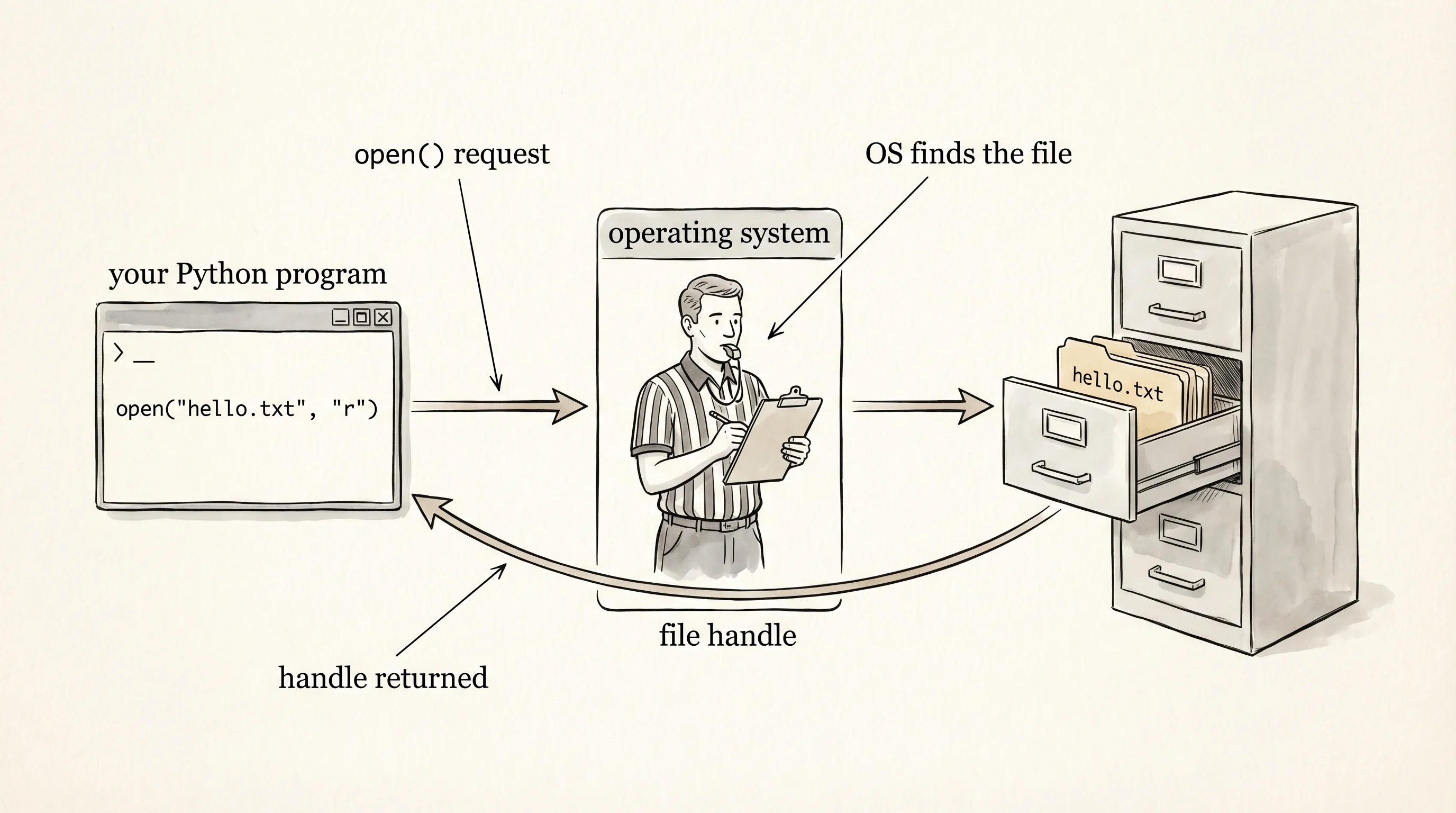
The first move is open. It takes a path and a mode and returns a file handle — your program's grip on a folder while the drawer is open. The mode tells Python what you intend to do: "r" for read, "w" for write (which truncates the file first), "a" for append, "rb" and "wb" for binary. The default is "r". Save the snippets in this lesson into a file called file_demo.py next to your venv and run them with python file_demo.py.
handle = open("hello.txt", "w")
handle.write("Hello, file system.\n")
handle.write("This is the second line.\n")
handle.close()

handle = open("hello.txt", "r")
contents = handle.read()
handle.close()
print(contents)
Hello, file system.
This is the second line.The pattern works, but it has a flaw the Therac-25 chapter from the last lesson would recognize: if write raises an exception, close never runs and the file handle leaks. Real programs use with, which guarantees the close even when something blows up.
with open("hello.txt", "w") as handle:
    handle.write("first line\n")
    handle.write("second line\n")

with open("hello.txt", "r") as handle:
    for line in handle:
        print("read:", line.rstrip())
read: first line
read: second lineThe with statement is a context manager. The block runs, and the moment control leaves it — normally or via an exception — the file's __exit__ method runs and the handle closes. Iterating directly over the handle yields one line at a time, lazily, the way the spotter generator from the iterators lesson hands plates one at a time. That matters when the file is bigger than RAM.
Paths get fiddly across operating systems. Mac and Linux use /, Windows uses \, and gluing path strings together with + causes bugs. Python solved it with pathlib.Path, which knows the right separator for the machine it is running on.
from pathlib import Path

home = Path.home()
log_path = home / "learning-python" / "hello.txt"
print("path:", log_path)
print("exists?", log_path.exists())
print("size:", log_path.stat().st_size, "bytes")
from pathlib import Path
home = Path.home()
log_path = home / "learning-python" / "hello.txt"
print("path:", log_path)
print("exists?", log_path.exists())
print("size:", log_path.stat().st_size, "bytes")The same Python code prints /Users/aarit/learning-python/hello.txt on macOS and C:\Users\aarit\learning-python\hello.txt on Windows. The / operator on a Path is overloaded — it does not divide, it joins path segments using the right separator for the platform. The Path.stat().st_size call asks the OS for the file's size in bytes, the same number Finder or File Explorer would show.
The right test of all this is to write and read a real CSV by hand. CSV stands for comma-separated values: each row is a line, each field is a comma-separated piece of text. There is a csv module in the standard library that handles the edge cases (commas inside quoted fields, escaped quotes), but the curriculum builds primitives by hand first and only later imports the canonical library. The next snippet writes a CSV of fake users, prints the file size after each write, then reads it back.
from pathlib import Path

users = [
    ("Aarit", 10, "ARK"),
    ("Aditya", 22, "GTA"),
    ("Charlie", 35, "Civilization"),
]

csv_path = Path("users.csv")
with open(csv_path, "w") as handle:
    handle.write("name,age,favorite_game\n")
    print("after header, size is", csv_path.stat().st_size, "bytes")
    for name, age, game in users:
        handle.write(f"{name},{age},{game}\n")
        print(f"after writing {name}, size is", csv_path.stat().st_size, "bytes")

with open(csv_path, "r") as handle:
    header = handle.readline().rstrip().split(",")
    print("columns:", header)
    for line in handle:
        fields = line.rstrip().split(",")
        row = dict(zip(header, fields))
        print(row)
after header, size is 22 bytes
after writing Aarit, size is 36 bytes
after writing Aditya, size is 51 bytes
after writing Charlie, size is 73 bytes
columns: ['name', 'age', 'favorite_game']
{'name': 'Aarit', 'age': '10', 'favorite_game': 'ARK'}
{'name': 'Aditya', 'age': '22', 'favorite_game': 'GTA'}
{'name': 'Charlie', 'age': '35', 'favorite_game': 'Civilization'}A question to answer from that output: notice that age came back as a string, not an integer. Why? Because every value in a CSV file is text on disk — there are no types in a comma-separated file, only characters. If you want an int, you have to call int(fields[1]) yourself. That conversion step is the line where bad data hits your program, and it is exactly where the try/except patterns from the last lesson earn their keep.
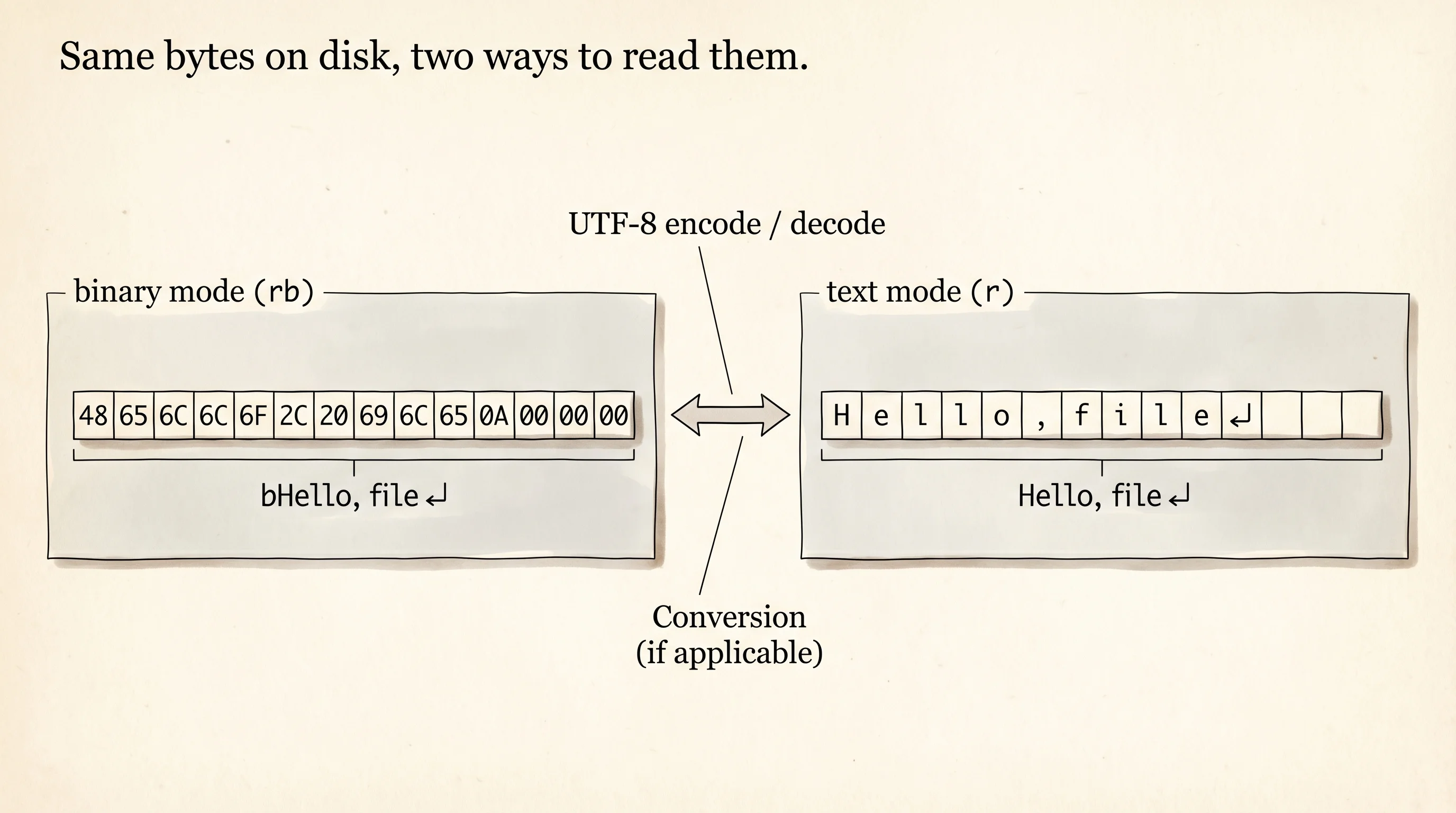
There is one more wrinkle. Open a file in text mode and Python decodes the bytes on disk into a str using UTF-8 by default. Open it in binary mode and you see the raw bytes.
with open(csv_path, "rb") as handle:
    raw = handle.read()
    print("bytes:", raw[:30])
    print("decoded:", raw[:30].decode("utf-8"))
bytes: b'name,age,favorite_game\nAarit,'
decoded: name,age,favorite_game
Aarit,The b prefix in the printed output means "this is a bytes object." The \n you see is one byte (0x0A) on disk that the text-mode reader translates into the newline character. Binary mode is the right choice for images, audio, anything that is not human text. Text mode is the right choice for text.
Appendix: regex
Files often contain text you want to fish a single piece out of. Regular expressions are the fishing rod. A regex is a tiny pattern language for matching strings. Python's re module ships in the standard library.
import re

text = "Contact: aarit@example.com, fallback: aditya+inbox@gmail.com"
match = re.search(r"[\w.+-]+@[\w-]+\.[\w.-]+", text)
print("match object:", match)
print("matched text:", match.group(0))
print("start, end:", match.start(), match.end())
match object: <re.Match object; span=(9, 27), match='aarit@example.com'>
matched text: aarit@example.com
start, end: 9 27The r"..." is a raw string — the r tells Python not to process backslashes, so the regex sees them as written. The pattern [\w.+-]+@[\w-]+\.[\w.-]+ reads as "one or more word characters, dots, pluses, or hyphens; then an at sign; then one or more word characters or hyphens; then a literal dot; then one or more word characters, dots, or hyphens." It matches the first email in the text. re.search returns a match object with the matched text and its position. re.findall returns every match as a list — useful when you want every email in a file, not just the first.
You can read messy text files now and pull structure out of them. The next bottleneck is that your data has no shape yet — it is a list of dicts, a string of bytes, rows in a CSV. To do anything serious you need real data structures, and the next section builds them by hand.